Don't block problem applicants. Flag them
TL;DR the thinking behind blocking makes sense, but as candidates can register with a new/different email address - All Jobs Pro's recommendation is to flag problem candidates with an Alert note. There may also be a GDPR issue to consider
Every recruiter hopes every candidate interaction will be a positive one. But occasionally, a team member receives a rude message, an inappropriate email, or behaviour that simply isn't acceptable. When that happens, you need a way to protect your team; and your first instinct might be to block the person from applying again.
It's an understandable response, but blocking comes with a few problems. Practically, a determined individual can simply apply from a different email address. There's also the question of what happens if a candidate realises they've been blocked and comes back demanding an explanation. That's a distraction nobody wants to have.
Furthermore, automatically preventing someone from applying could put you in breach of Article 22 of GDPR, which protects individuals from significant decisions made solely by automated means. Blocking someone from a job opportunity almost certainly qualifies.
All Jobs Pro solves this with Alert Notes; so you can Flag problem candidates across every application - past, present and future..
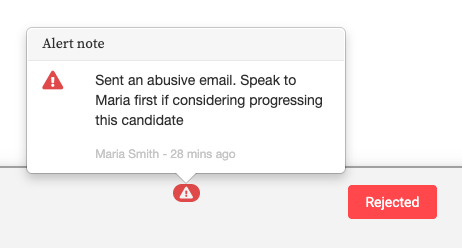 All Jobs Pro lets you add two types of notes to a candidate's profile: Regular Notes and Alert Notes.
Regular Notes are straightforward - they appear only on the specific application you're working on eg "Need to reschedule interview" or "Called in to update references".
Alert Notes appear by all applications this candidate makes (past, present and future) eg "Works for our competitor" or "Sent abusive message to team member, treat with caution".
A Note on GDPR
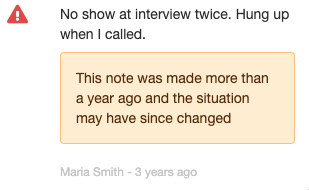
Alert Notes are personal data, and your team should treat them as such. Keep notes factual and specific. For example, "sent offensive email to team member on [date], reported to HR" rather than anything vague or opinion based. Candidates have the right to request all data held about them, which includes any notes on their profile.Good practice: When adding an Alert Note, stick to the facts. Avoid subjective language, and only record what's necessary. If you're unsure what's appropriate to document, speak to your data protection lead before adding a note.All Jobs Pro also helps here too; if an Alert Note is old, the system will display a reminder that the situation may have changed since the note was written. It's a small but important nudge to review the flag with fresh eyes rather than act on outdated information.
How to Flag a candidate with an Alert note
- View the candidate's profile and click the Make a Note button.
- Select Alert Note from the note type options.
- Write your note, then save.
- Please consider the note on Good practice (above)
That's it. The alert will now appear prominently on the candidate's profile, visible to your whole team, on every application they submit.
Take control of your employer brand and make the best hires with All Jobs Pro's easy to use Applicant Tracking System book a quick demo here.